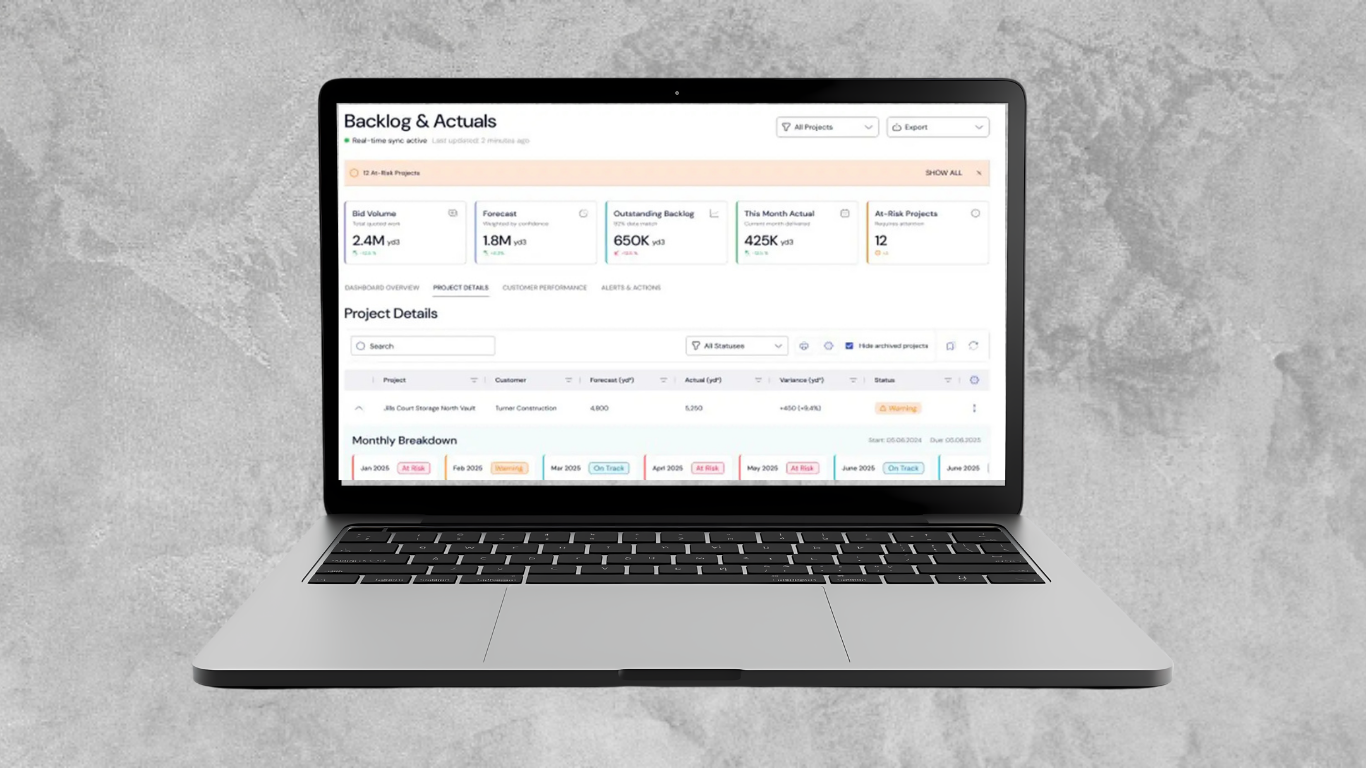

Every ready mix producer runs the same math problem hundreds of times a week: adjust one material across dozens of mix designs, at a dozen plants, without breaking anything downstream. Until now, that meant opening one mix at a time. Mix Manager, the newest addition to ConcreteGo, replaces that grind with a single screen built for the way QC technicians and operations managers actually work.
The headline capability is the new Mix Editor: select any number of mix designs across any number of plants, and replace, add, remove, or re-dose a material in one pass. Swap a cement supplier across your entire Class 1 lineup. Add a seasonal admixture to every mix at three plants. Retire a discontinued aggregate everywhere it appears. What used to be dozens of individual edits is now one workflow, with a full before-and-after preview before anything goes live.
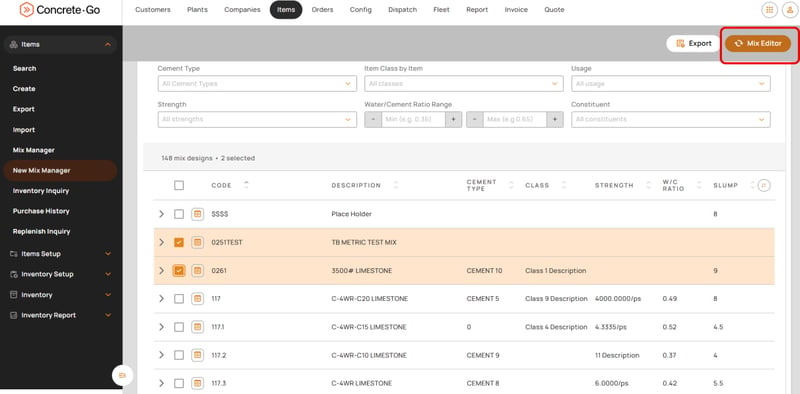
Fig. 1 - Select any mix designs from search results, across any plants, and the Mix Editor activates — ready to replace, add, remove, or re-dose a constituent everywhere at once.
Search That Matches How You Think
Finding the right mixes used to mean scrolling. The By Mix search now filters on the attributes that actually distinguish one design from another: cement type, item class, strength, water/cement ratio range, usage, or a specific constituent. Searching for every mix that contains a particular fly ash, for instance, turns a planning question into a five-second query instead of a spreadsheet exercise.
- Item-level filters: code, description, category, location, formula, saleable status
- Design-level filters: cement type, item class, usage, strength, W/C ratio range, constituent
- Expandable rows show the full constituent breakdown, grouped by location, without leaving the list
- Formula matching automatically links mix designs that share identical materials and quantities across plants, so the same design is recognized as the same design everywhere it's used
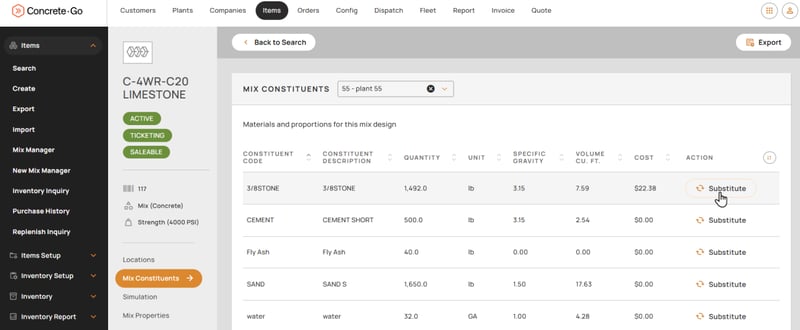
Fig. 2 - Every constituent, every plant assignment, one Substitute button — the quantity carries over automatically and yield, cost, and W/C ratio recalculate on the spot.
Substitute a Material, See the Impact First
Inside any single mix, the Mix Constituents view lists every ingredient with its quantity, specific gravity, volume, and cost. Click Substitute next to any material, choose a replacement, and Mix Manager calculates the effect before you commit: specific gravity change, cost impact per cubic yard, and yield impact per cubic foot, color-coded and paired with a plain-language status banner. Replace a material after a vendor change, adjust a dosage, add a seasonal admixture, and see exactly what's about to happen before anything goes live.
Fig. 2 - Every constituent, every plant assignment, one Substitute button — the quantity carries over automatically and yield, cost, and W/C ratio recalculate on the spot.
Run the "What If" Before You Run the Batch
Not every change is a straight substitution. The Simulation tab lets a QC technician nudge constituent weights, more stone, less water, a different air percentage, and watch weight, yield, cost, and water/cement ratio shift in real time, entirely separate from the saved mix design. Nothing is committed until Apply Changes is clicked. Reset, and every value returns to where it started.
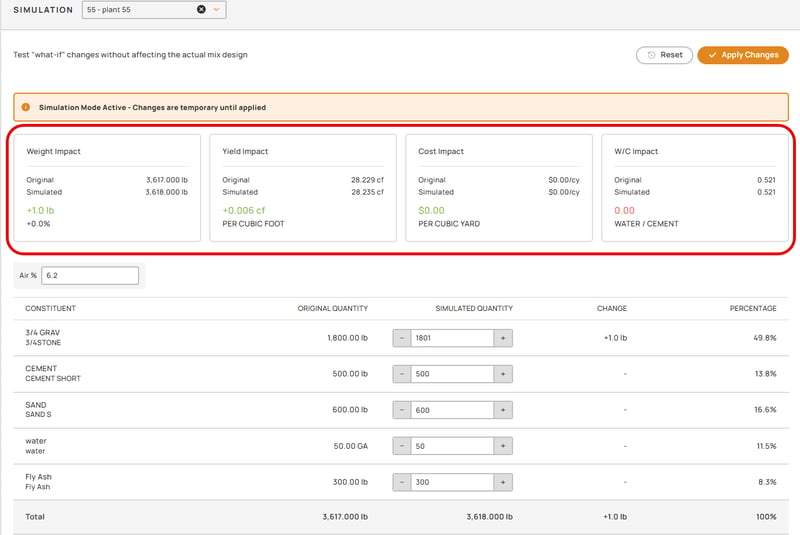
Fig 3 - Weight, yield, cost, and water/cement impact update live as quantities change — color-coded, and reversible until Apply Changes is clicked.
One Source of Data, Two Products
Mix Manager updates the same item data that ConcreteGo has always run on, which means a change made here doesn't stop at dispatch and batching. Because Sysdyne acquired Slabstack in December 2025, that same mix data now flows straight into pricing and quoting too. Update a mix once, and the numbers a sales rep quotes off of stay in sync automatically.
No double entry, no re-keying data in two places. The mix design lives in exactly one place, inside ConcreteGo, and everything downstream reads from it.
How a Bulk Change Actually Runs
The Mix Editor workflow was built around one rule: nothing is irreversible without a preview first. Here's the sequence, start to finish.
- Select mix designs from any By Mix search result, one, or a hundred and forty.
- Choose an action: Replace a Material, Add a Material, Remove a Material, or Change Material Quantity.
- Set the scope: which material, which replacement, and which plant locations the change should apply to. All locations are pre-selected; uncheck any to exclude them.
- Review the preview grid showing every affected mix, before and after, with differences highlighted, exportable to CSV, Excel, or PDF for a paper record.
- Apply Changes. Volumes, yields, and costs recalculate in place. Successful saves are kept even if one location fails, nothing rolls back silently.
Welcome to Ready Mix, Simplified
Mix Manager is rolling out now inside ConcreteGo. If your team is still managing mix designs one plant, one screen at a time, this is the moment that changes.
If you'd like to see Mix Manager in action, contact Sysdyne to start the conversation.